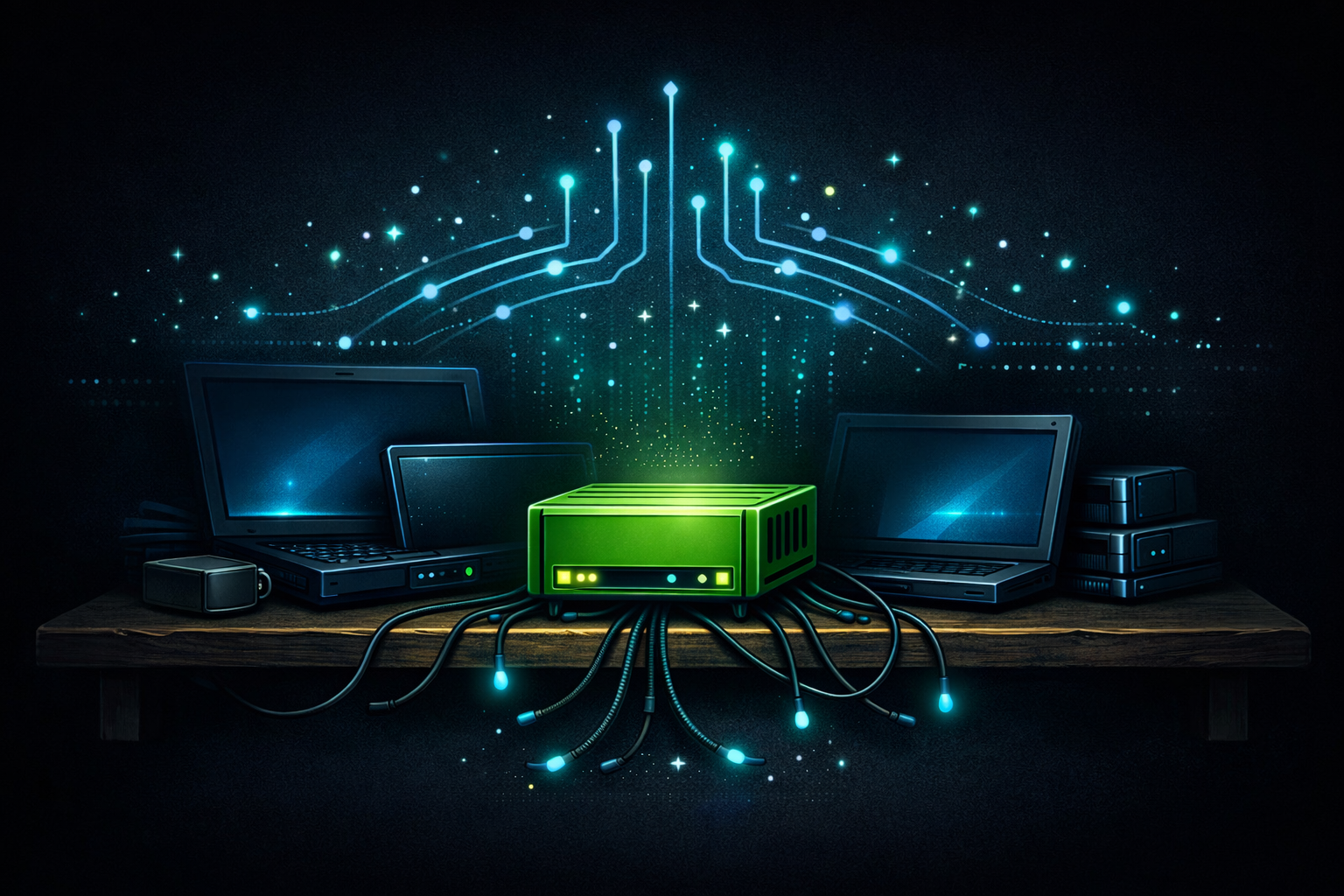
Old Laptops, a Green Box, and the Beginning of Something
The home lab didn't start with a plan. It started with a small appliance on a shelf and a decision to stop renting other people's infrastructure. This is where that story begins.
The Problem With Everyone Else's Servers
At some point, if you pay attention, you start noticing how much of your daily digital life runs on infrastructure you have no control over. Your photos are on one company's servers. Your smart home data is in another company's cloud. Your automations depend on an API that could change terms, raise prices, or disappear entirely. None of it is yours.
That realization doesn't arrive all at once. It builds. A subscription price goes up. A service shuts down with thirty days' notice. An app starts requiring an account for something that used to work locally. Each one is small. Together they add up to a clear picture: you're a tenant in someone else's system, and the lease terms aren't yours to set.
The alternative — running your own — used to feel like it required a server rack, a dedicated room, and a weekend of configuration you weren't sure would hold. That was the mental barrier. Then I looked at the hardware I already had sitting around.
You don't need a rack. You need a laptop that's been replaced, a free weekend, and a willingness to let Ubuntu solve most of the problems you were worried about.
The Hardware: Nothing Special, On Purpose
Both servers in this setup are repurposed laptops. Not old workstations, not purpose-built server hardware — just machines that had been retired from daily use and were sitting in a closet. That was deliberate. If this whole thing fell apart or wasn't worth the effort, the stakes were low.
The primary server — the one doing the heavy lifting — runs Ubuntu and handles the main stack: Docker containers, reverse proxy, DNS, monitoring, photo library, media server. The secondary server runs the same OS and fills a redundancy role: DNS fallback, DHCP authority, backup monitoring, and a few services that benefit from being on a separate machine. They share a network switch, draw minimal power, and run headlessly.
Using laptops as servers has one practical advantage that gets overlooked: the battery. When the power goes out, a laptop server doesn't go with it. The built-in battery is an uninterruptible power supply you didn't have to buy. That's not nothing.
Home Assistant Green: The Entry Point
The smart home piece started before the servers did. Home Assistant Green is a small, purpose-built appliance — you plug it in, it boots into Home Assistant OS, and you configure from there. No Linux setup, no Docker, no OS decisions. It's the fastest path from zero to a working Home Assistant instance, and that was the right call for getting started.
What it runs: automations, presence detection, Zigbee device management through a USB coordinator and Zigbee2MQTT, and a growing list of integrations that connect the physical environment to the data layer. Lights, sensors, location — it pulls all of it together.
The deliberate choice was to keep HA Green separate from the laptop servers. The smart home hub doesn't need to share failure modes with the services running on Bunty. If a Docker container crashes or an update goes sideways on the main server, the lights still work. That separation costs nothing and has saved aggravation more than once.
Plug it in. Boot it up. Configure it through a browser. Home Assistant Green removes every barrier that used to make self-hosted smart home automation feel out of reach.
Browser-based onboarding. First automations within a few hours. Zigbee USB dongle connected for direct device pairing — no cloud bridge required.
Replaced the default Zigbee integration with Z2M for more control and visibility. MQTT broker runs on HA Green alongside it.
Zone detection, mobile location, sleep tracking, media state, and calendar awareness feeding automations. Sensors talking to each other.
HA Green pulling data from and pushing data to Bunty and Buntzilla. Separate hardware, shared information layer.
The Laptop Servers: Getting Ubuntu Running
Ubuntu installation on a repurposed laptop is unremarkable — download the ISO, write it to a USB drive, boot, follow the installer. The part worth talking about is the configuration that makes a laptop actually useful as a headless server.
Lid closure behavior is the first thing to fix. By default, closing a laptop lid suspends the system. That's not useful for a machine that's supposed to run 24/7 in a corner. A single change to the systemd logind configuration handles it: HandleLidSwitch=ignore. Lid closed, system running.
Static IP reservations in the router's DHCP table keep addresses consistent. SSH configured with key authentication and the lid closed for good — that's the full setup for headless operation. No monitor, no keyboard attached, just a machine sitting on a shelf doing its job.
CasaOS went on Bunty to manage Docker containers through a browser UI. It's a reasonable layer for running and monitoring containers without memorizing docker-compose flags for every service. Buntzilla stayed leaner — fewer services, more stability, focused on being a reliable fallback node.
x86_pkg_temp is the zone to watch, not acpitz or pch_skylake, which are chipset sensors. This distinction matters and took a patch cycle to sort out.What Actually Runs on It
Once the hardware was stable and Ubuntu was configured, the question became: what do you actually put on it? The answer has been iterative. Some services went on immediately because the need was clear. Others came later as the use cases developed. A few were tried and removed.
The core stack that justified the whole project: a self-hosted photo library with full offline access and face recognition, a media server, DNS-level ad blocking across the entire network, a reverse proxy handling external access, and Tailscale providing a secure mesh so everything is reachable remotely without exposing ports to the internet.
Immich (photo library), Plex (media), Pi-hole (DNS), Nginx Proxy Manager (reverse proxy), Uptime Kuma (monitoring), Sonarr (media management), FreshRSS (feeds), Grocy (household), Tailscale.
Pi-hole (DHCP authority + DNS fallback), Uptime Kuma mirror (watches Bunty independently), AnythingLLM, SearXNG. Lighter footprint, higher stability target.
Home Assistant OS, Zigbee2MQTT, Mosquitto, Tautulli (media tracking). Deliberate isolation from the Docker stack on Bunty.
The list keeps growing. The point isn't the specific services — it's the model. Each one represents something that was previously running on someone else's server, on someone else's terms, generating someone else's data. Now it's local.
Where This Goes Next
This post is the setup — the hardware, the reasoning, the baseline configuration that made everything else possible. The rest of this series goes deeper into each layer: the smart home automation stack, the self-hosted services, the pipelines that connect them, and the things that broke along the way.
If you're sitting on old hardware and wondering whether it's worth the setup time — the honest answer is that it depends on how much you care about owning your own data and systems. The technical barrier is real but lower than it looks. The Ubuntu setup took an afternoon. The configuration took longer, but most of it was interesting rather than frustrating.
Start small. One service. One machine. See if you want more.
Two repurposed laptops and a green box on a shelf. That's the foundation. Everything else in this series is built on top of that.

Leave a Reply