The Problem
I have a lot of stuff. Not in a hoarder way — in a “I’ve lived in this house for years and have accumulated tools, hardware, cables, and household supplies across a garage, an office, a basement, and several closets” way. Finding things was becoming a minor but persistent daily annoyance.
I’d already solved the cataloging side of the problem. I run Homebox — a self-hosted home inventory app — on my home lab server. Every item is labeled and assigned to a location. The database was there. The problem was retrieval. Opening the app, navigating to search, typing a query — functional, but slow. I wanted something faster. Something I could trigger while standing in the garage with my hands full.
The database existed. The friction was retrieval. I wanted to ask a question and get an answer back — without touching an app.
My first instinct was voice. I tried Alexa routines, Google Assistant, a couple of third-party automation bridges. None of them played cleanly with a self-hosted API running on my local network. Eventually I stopped fighting the voice assistants and solved it the way I solve most things — by building it myself using the tools I already had running.
What I Built
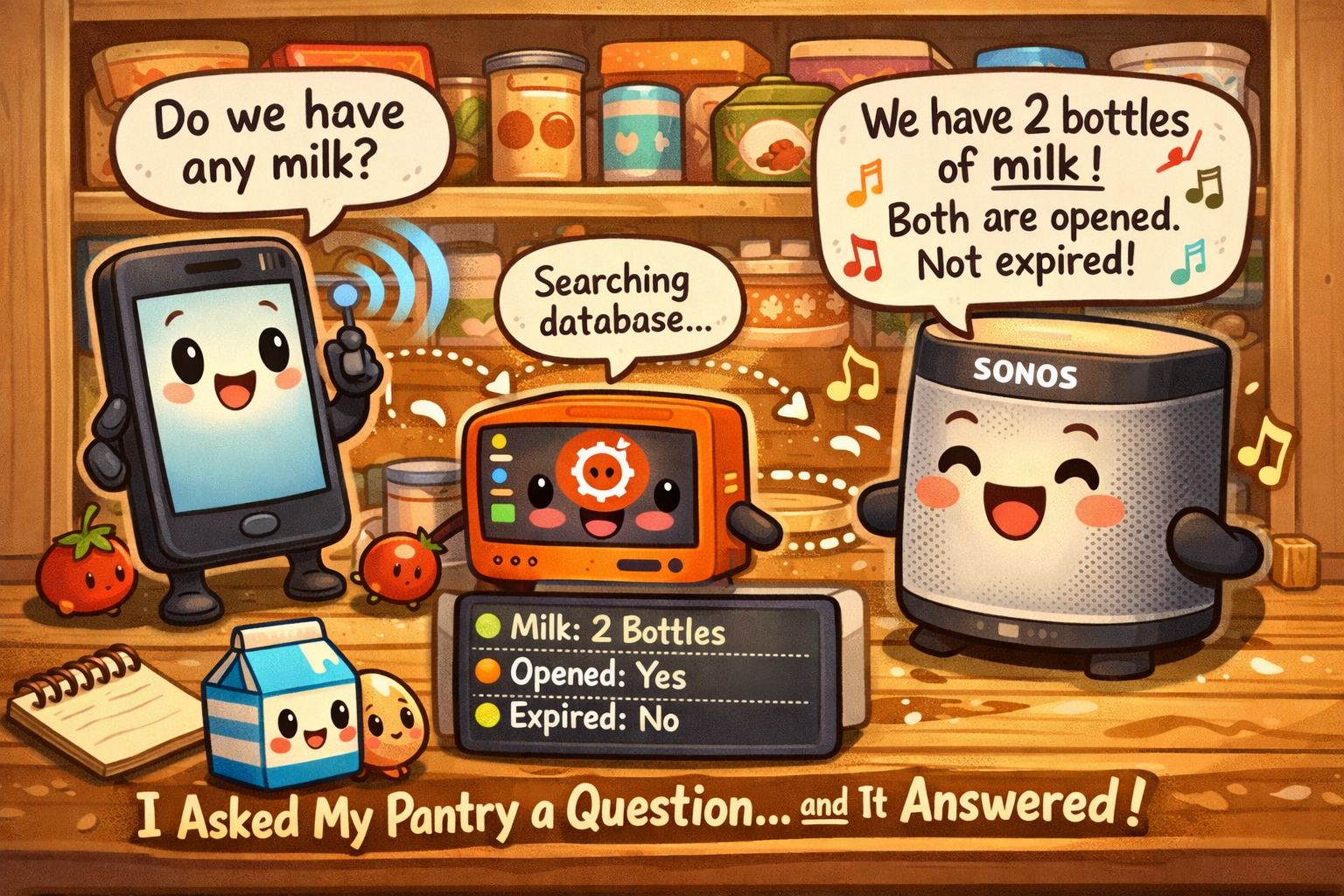
The end result is a pipeline. I tap a shortcut on my phone, a dialog box appears, I type what I’m looking for, and within a few seconds Sonos speaks the answer and a notification lands in my phone tray. It works whether I’m home on WiFi or connected remotely.
Every piece of that pipeline is something I was already running. No new subscriptions, no cloud dependencies added, no third-party accounts. The whole thing lives on hardware I control.
The Pieces
Before getting into how it works, here’s what’s involved and what each component does in context.
How It Works
When I tap the shortcut, Tasker fires a task that immediately opens a native input dialog — a simple text box. I type what I’m looking for, tap OK, and the task packages my input into a request and sends it to a small Python service running continuously on my home server.
That service receives the search term, authenticates against Homebox, queries the inventory, and interprets the results. Based on how many matches come back, it builds a spoken response and fires it in two directions simultaneously: to Piper TTS (which renders it to audio and sends it to Sonos) and to Home Assistant (which pushes a notification to my phone tray).
Native text input. Type the item name. Tap OK. That’s the entire user interaction.
Tasker sends the search term as a JSON payload to a Flask service on the home server. Works over LAN or Tailscale.
The service authenticates with Homebox and runs the search. Results come back with item names, quantities, and locations.
One match gets the full answer. Two or three matches get listed with locations. Too many matches triggers the reprompt loop.
Piper converts the response to speech and plays it on Sonos. Home Assistant pushes the same text as a phone notification.
What It Sounds Like
The response varies based on what the search returns. Here’s what each outcome looks and sounds like in practice:
The Reprompt Loop
One of the more interesting design decisions was handling broad searches gracefully. If I type “cable” I might have thirty items that match. A long list read aloud on Sonos isn’t useful — and Piper TTS will quietly drop responses that are too long anyway.
When results exceed a threshold, the server signals back to the phone with a specific response code instead of a spoken result. Tasker reads that code, recognizes it as a “too many results” state, and re-opens the input dialog automatically. No error message, no failed state — just a second chance to be more specific.
The Interesting Problems
Getting the pipeline functional took longer than the architecture would suggest. The issues were almost entirely in the middle layer — specifically in how Tasker handles variables and HTTP requests. A few things worth documenting for anyone who tries something similar.
hb_query, the stored value doesn’t live in %hb_query — Tasker automatically appends _input, so the actual variable is %hb_query_input. Reference the wrong name and you get nothing. No error. Just silence.
Why It Matters
This is a small-scale problem with a small-scale solution. But it’s a good example of the kind of thing I find satisfying about running your own infrastructure.
There’s no subscription. No account to log into. No privacy policy to agree to. No cloud service that might deprecate the feature or change the terms. The whole thing runs on hardware I own, software I control, and a network I operate. If something breaks, I fix it. If I want to change how it works, I change it.
The same pipeline now handles grocery stock queries too — stock levels, locations, expiry dates. Same architecture, different endpoint. That’s the payoff of building on infrastructure you understand end to end.
If you’re running Homebox and want to build something similar, every piece here is open-source or free: Homebox, Home Assistant, Tasker, Piper TTS, and a Linux server to tie it together. The architecture isn’t complicated. The tricky parts are in the Tasker variable handling — which is now documented above so neither of us has to rediscover them.